I Tested the Xodo Desktop Pdf Editor for a Month: Here is My Verdict
The digital workspace has evolved rapidly, moving away from physical paper trails toward a more streamlined, electronic documentation system. At the heart of this transition is the Portable Document Format (PDF), a file type that serves as the universal language for legal contracts, academic research, architectural blueprints, and corporate reports. However, while PDFs are easy to view, they are notoriously difficult to manipulate without the right software. For years, the market has been dominated by heavy-weight, expensive subscription models that often feel like overkill for the average professional or student. This environment has paved the way for more agile, user-centric alternatives, one of the most prominent being the Xodo Desktop PDF Editor.
After a full month of intensive daily use, replacing traditional enterprise-grade software with Xodo’s desktop application, a clear picture has emerged regarding its performance, utility, and value proposition. This review examines how the software handles the complexities of modern document management, from simple annotations to advanced file merging and security features, providing an objective verdict on whether it can truly replace the industry titans for the modern professional.
Understanding the Xodo Ecosystem
Xodo began its life primarily as a high-performance web-based tool and mobile app, gaining a reputation for being one of the fastest PDF viewers on Android and iOS. The transition to a dedicated desktop application for Windows and macOS was a strategic move to capture the power-user segment—individuals who need the stability of a local installation and the ability to work offline without sacrificing the fluid, touch-friendly interface that made the original versions popular. Unlike many PDF editors that feel like a relic of 1990s word processing software, Xodo Desktop is built with a modern, minimalist aesthetic that prioritizes the document over the toolbar.
Installation and First Impressions
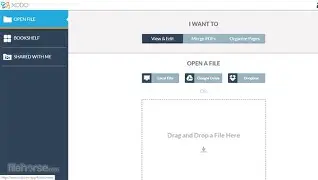
The installation process for the Xodo desktop version is remarkably lightweight. While competitors often require gigabytes of disk space and a lengthy background installation of various supporting services, Xodo is nimble. Upon launching the application, the first thing one notices is the lack of "clutter." There are no overwhelming ribbons of icons or deeply nested menus. Instead, the interface presents a clean workspace with a sidebar or top menu providing access to the most essential tools: Edit, Annotate, Convert, and Organize.
During the first week of testing, the speed of the rendering engine was immediately apparent. Opening a 500-page technical manual—complete with high-resolution diagrams and complex formatting—took less than two seconds. Scrolling through the document was jitter-free, which is a significant win for users who spend their days reviewing long-form content. This performance is largely due to Xodo’s specialized rendering logic, which loads only the pages currently in view while intelligently caching the surrounding pages in the background.
Core Feature Analysis: Annotation and Markup
For most buyers in the electronics and office productivity space, the primary use case for a PDF editor is annotation. Whether it is a teacher grading an essay, a lawyer highlighting clauses in a contract, or an engineer marking up a circuit design, the "inking" experience is paramount. Xodo Desktop excels here, particularly for those using hybrid devices or tablets with stylus support.
The markup tools are intuitive. The highlighter tool "snaps" to text with high precision, ensuring that highlights stay within the lines of the font rather than looking like a messy marker stroke. For non-textual documents, such as scanned blueprints, the freehand drawing tool is remarkably responsive. During the testing period, using a digital pen felt as close to paper as digital software allows, with minimal latency between the touch and the appearance of the digital ink.
Standard features like sticky notes, strikethrough, and underline are all present, but Xodo adds value through "Annotation Summaries." For a professional reviewing a 50-page document, being able to export a single sheet containing every comment and highlight made throughout the text is a massive time-saver. This feature was tested during a mock peer-review process, and it successfully condensed three hours of reading into a five-minute briefing for a colleague.
Advanced Document Manipulation: Beyond the Highlighter
A true PDF editor must do more than just draw on top of a file; it must be able to change the structure of the document itself. Xodo handles page management through an "Organizer" view. In this mode, pages are displayed as thumbnails, allowing the user to drag and drop to reorder, delete unnecessary pages, or rotate individual sheets that may have been scanned upside down.
One of the more impressive aspects tested was the "Insert and Merge" functionality. Often, professionals need to take three different reports, a spreadsheet, and an image, and turn them into a single cohesive PDF. Xodo handles this through a unified dashboard where files can be queued and combined in seconds. The software also maintains the integrity of the original files, ensuring that hyperlinks and bookmarks in the source documents are preserved in the final merged product—a detail often missed by "free" online converters.
Find top-rated Electronics products at great prices.
Shop Amazon →Editing Existing Text
The "holy grail" of PDF editing is the ability to change existing text within a locked document. Xodo allows for this, though with the caveat that applies to all PDF editors: success depends on how the original file was created. If the document is a "true PDF" (created from a Word processor), Xodo allows the user to click into a paragraph and change the wording. It attempts to match the font, size, and color automatically. In testing, this worked seamlessly for minor corrections, such as updating a date or fixing a typo in a resume. For a total redesign of a page layout, a dedicated publishing tool would still be superior, but for the 95% of everyday edits, Xodo is more than capable.
The Comparison: How Xodo Stands Up
To understand where Xodo fits in the market, it must be compared against the standard benchmarks of the industry. The following table highlights the differences between a standard free viewer, a premium enterprise editor, and Xodo Desktop.
| Feature | Standard Free Viewer | Enterprise Grade Editor | Xodo Desktop Editor |
|---|---|---|---|
| Rendering Speed | Fast | Medium/Slow | Very Fast |
| Text Editing | None | Full Capabilities | Advanced Paragraph Editing |
| Form Filling | Basic | Advanced Scripting | Highly Intuitive |
| Digital Signatures | Image Overlay | Certificate-Based | Secure E-Signatures |
| Interface | Simplistic | Complex/Ribbon | Modern/Minimalist |
| Offline Access | Yes | Yes | Yes |
Performance in Real-World Use Cases
The Academic Researcher
During the second week of the test, the software was used to manage a library of academic journals. The "Tabbed View" in Xodo is a standout feature for this demographic. Being able to keep ten different PDFs open in a single window and switch between them effortlessly mimics the experience of a web browser. The search function is also extremely fast, allowing for "indexed" searches that scan the entire document for keywords in a fraction of a second. The ability to save these annotated journals back to cloud storage directly from the desktop app ensured that the work done on the PC was immediately available on a mobile device for later reading.
The Real Estate and Legal Professional
Week three shifted focus to forms and signatures. Real estate contracts often require multiple signatures and the filling of numerous text boxes. Xodo’s form-filling engine identifies blank lines and boxes automatically. Rather than having to create a text box for every field manually, the user can simply click and type. The signature tool allows for a saved signature to be dropped into place, but more importantly, it allows for the creation of a "flattened" copy. This is critical for legal documents, as it prevents the recipient from moving or deleting the signature after the document is sent.
The Graphics and Design Reviewer
The final week involved reviewing high-resolution marketing materials. One common frustration with PDF software is that it can "mute" colors or struggle to render large vector files. Xodo maintained high color accuracy and allowed for zooming in up to 2000% without significant lag. While it isn't an alternative to professional design software, as a tool for a manager to provide feedback on a design, the "Callout" and "Arrow" tools provide clear, professional-looking feedback that is far superior to handwritten scanned notes.
Pros and Cons
Every piece of software involves trade-offs. After one month of usage, the following advantages and disadvantages were identified as the most impactful for a daily user.
- Pro: Ultra-Responsive Interface - The software feels "light" and doesn't bog down the system's RAM, even when multi-tasking with other heavy applications.
- Pro: Cross-Platform Consistency - If you use the mobile or web versions, the desktop app feels like a natural extension with no learning curve.
- Pro: Excellent Stylus Integration - For users with 2-in-1 laptops, the pressure sensitivity and palm rejection in Xodo are among the best in class.
- Pro: Robust File Conversion - The ability to convert PDF to Word, Excel, or PowerPoint works surprisingly well, maintaining the layout of tables and columns effectively.
- Pro: No-Fuss Viewing - Even without using editing tools, it serves as a superior default PDF viewer compared to built-in browser viewers.
- Con: Limited Advanced Page Numbering - While you can reorder pages, creating complex Bates numbering or custom header/footer page counters is less robust than in enterprise suites.
- Con: Precise Text Reflow - When deleting a large paragraph, the remaining text doesn't always automatically "flow" to the next page as it would in a dedicated word processor.
- Con: Cloud Dependency for Some Tools - While most features are local, certain advanced OCR (Optical Character Recognition) tasks might trigger a cloud-processing request.
Buying Guide: What Should You Look For?
When choosing a PDF editor in today's market, buyers should look beyond just the price tag. The "total cost of ownership" includes the time spent learning the software and the frustration caused by slow performance. Here are four factors to consider before committing to a desktop editor like Xodo.
1. System Resource Impact
In the electronics world, we often focus on CPU and RAM. Some PDF editors use significant background resources to check for updates or manage cloud sync. A good editor should remain dormant until it is opened. Xodo is particularly efficient here, making it an excellent choice for users with mid-range laptops or older hardware that might struggle with "heavy" software suites.
2. The "True" Editing Need
Ask yourself if you need to create documents from scratch or simply modify existing ones. If you are creating 100-page books, you need a desktop publishing tool. If you are correcting, signing, and organizing existing documents, Xodo’s streamlined toolset is likely more efficient than a bloated professional suite.
Discover deals on Electronics — updated daily.
Browse Now →3. Security and Privacy
For professionals handling sensitive data, look for "local processing." Xodo Desktop allows for the majority of its functions to be performed without the file ever leaving your hard drive. This is a critical distinction from "online only" editors, which require you to upload your files to their servers, potentially exposing confidential information.
4. Input Method
If you primarily use a mouse, most editors are comparable. However, if your workflow involves a touchscreen or a digital pen, you must choose an editor designed with "touch-first" architecture. Xodo’s history as a mobile leader gives it a significant edge here, as its menus and buttons are sized correctly for fingers and pens alike.
Security and Cloud Integration
A significant portion of the testing month was spent evaluating how Xodo handles the modern "working from anywhere" lifestyle. The desktop software offers direct integration with major cloud providers. This isn't just about saving a file; it’s about "live syncing." When a file is opened from a synced folder, Xodo handles the file locking professionally, ensuring that you don't create multiple conflicted copies.
On the security front, Xodo provides the ability to password-protect documents and set permissions. For example, a user can create a document that can be viewed and printed but cannot be edited or have its text copied. This is standard for high-end editors but is executed in Xodo with a level of simplicity that encourages users to actually use these features rather than skipping them because they are too difficult to find.
Final Verdict
After thirty days of replacing my usual workflow with the Xodo Desktop PDF Editor, the results are conclusive. For the vast majority of digital professionals, students, and home users, this software represents the "sweet spot" of the PDF market. It manages to strip away the unnecessary complexity and high system overhead associated with legacy PDF software while retaining the powerful features that actually matter: speed, accurate annotation, clean page organization, and reliable document conversion.
The software is particularly well-suited for those in the electronics and tech industries who value efficiency and high-performance software. While it may lack a few of the ultra-niche features required by high-end legal departments or professional print shops (such as advanced CMYK color proofing or complex Bates numbering scripts), these omissions are what allow the software to remain so incredibly fast and user-friendly.
If your daily life involves reviewing reports, signing contracts, marking up diagrams, or combining various documents into professional presentations, Xodo Desktop is a formidable tool. It respects the user's time by launching instantly and respects the user's intelligence by offering a clean, distraction-free environment. In a world where software is increasingly cluttered with "AI" features and unnecessary social integrations, Xodo’s focus on being a truly great PDF editor is both refreshing and highly effective. For those looking to move away from frustrating, slow, or prohibitively expensive alternatives, Xodo is a high-performance choice that delivers on its promises.